
A reliable internet connection has become part of everyday life.We use Wi-Fi for work, entertainment, online shopping, video calls, gaming, smart home devices, and Networking with friends and family.When the connection is slow or keeps dropping, the problem is not always your internet plan.the real issue is your router, Wi-Fi coverage, network setup, or connected devices.Networking and WiFi devices can help you build a faster, more stable home or office network.You do not necessarily need the most expensive equipment.The goal is to choose devices that match your space, internet speed, number of users, and everyday needs.
What Are Networking & Wi-Fi Devices?

Networking devices are pieces of hardware that help computers, phones, televisions, smart devices, and other equipment communicate with each other and connect to the internet.
Common examples include:
- Wi-Fi routers
- Modems
- Mesh Wi-Fi systems
- Wi-Fi extenders
- Network switches
- Wireless access points
- Ethernet adapters
- Network cables
- Mobile hotspots
- Powerline networking devices
Each device has a different role.
A router manages network traffic and connects devices to your local network. A modem or ONT connects your home to the internet service provided by your ISP. A mesh system can improve Wi-Fi coverage across a larger home, while a switch can provide additional wired network connections.
The right combination depends on your setup.
How Does a Home Wi-Fi Network Work?
It can help to think of your home network as a small communication system.
Your internet service enters your home through a connection provided by your ISP. Depending on the service, this may connect to a modem, ONT, or gateway device.
The router then creates your local network and provides Wi-Fi or wired connections.
A simple setup may look like this:
| Device | Main Role |
|---|---|
| ISP connection | Brings internet service into your home |
| Modem/ONT | Connects your network to the ISP service |
| Router | Manages network traffic and devices |
| Wi-Fi access point | Provides wireless network coverage |
| Mesh node | Extends Wi-Fi coverage throughout the home |
| Network switch | Adds additional wired Ethernet connections |
| Ethernet cable | Provides a wired network connection |
Many modern ISP gateways combine several of these functions into one device.
Wi-Fi Router: The Heart of Your Home Network
For many homes, the router is the most important networking device.
A modern router can manage multiple devices simultaneously, provide wireless connectivity, control network traffic, and offer security features.
When choosing a router, look beyond the maximum speed printed on the box.
Consider:
- Wi-Fi generation
- Coverage area
- Number of connected devices
- Ethernet ports
- Security features
- Parental controls
- Guest networking
- App-based management
- Internet plan speed
- Compatibility with your ISP
A faster router does not automatically make your internet connection faster than the service you pay for.
For example, if your internet plan provides 300 Mbps, purchasing a router advertised with multi-gigabit wireless speeds will not turn that 300 Mbps service into a multi-gigabit connection.
The extra capability can still be useful for local networking or future upgrades, but expectations should remain realistic.
Understanding Wi-Fi Generations
Wi-Fi technology has developed significantly over the years.
You may see terms such as Wi-Fi 5, Wi-Fi 6, Wi-Fi 6E, and Wi-Fi 7 when shopping for networking equipment.
| Wi-Fi Generation | General Focus |
|---|---|
| Wi-Fi 5 | Faster wireless networking than older standards |
| Wi-Fi 6 | Better efficiency with many connected devices |
| Wi-Fi 6E | Adds access to the 6 GHz band where supported |
| Wi-Fi 7 | Higher performance and newer wireless capabilities |
Actual performance depends on the router, client device, channel conditions, distance, walls, interference, and internet connection.
The newest Wi-Fi standard is not automatically necessary for everyone.
If your current devices only support an older generation, buying an advanced router may provide limited benefits until you upgrade those devices.
2.4 GHz, 5 GHz, and 6 GHz Wi-Fi Bands
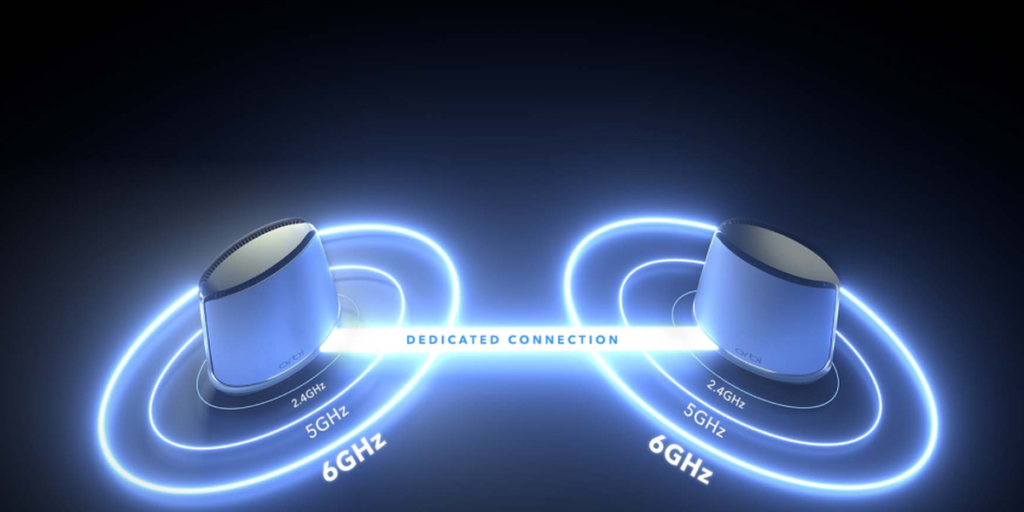
Modern wireless networks may use multiple frequency bands.
2.4 GHz
The 2.4 GHz band generally provides better range and can travel through obstacles more effectively than higher-frequency bands.
However, it can become crowded because many household devices use this frequency range.
5 GHz
The 5 GHz band generally offers more available channels and can provide higher speeds at shorter distances.
It is often useful for streaming, gaming, and other bandwidth-heavy activities when the device is reasonably close to the router.
6 GHz
Wi-Fi 6E and newer compatible equipment can use the 6 GHz band.
It can provide access to additional spectrum and may be useful in environments with heavy wireless congestion. However, 6 GHz signals generally have shorter effective range than lower-frequency bands, and both the router and client device need compatible hardware.
What Is a Mesh Wi-Fi System?
A mesh Wi-Fi system uses multiple coordinated devices to provide wireless coverage across a larger area.
Instead of relying on one router to reach every room, you can place additional mesh nodes around the property.
For example:
Internet connection → Main mesh router → Mesh node → Mesh node
This can be particularly useful in:
- Large homes
- Multi-floor houses
- Homes with thick walls
- Long buildings
- Areas with Wi-Fi dead zones
A mesh system can make moving around the home more convenient because compatible systems are designed to manage connections between nodes.
However, placement still matters.
Adding more mesh units is not always better. Nodes that are placed too far apart may struggle to maintain a strong connection with one another.
Wi-Fi Extenders: When Do You Need One?
A Wi-Fi extender or repeater receives an existing wireless signal and retransmits it to increase coverage.
It can be useful when one part of your home has weak Wi-Fi and you do not need a complete mesh system.
The key is placement.
If an extender is placed in an area where the original Wi-Fi signal is already extremely weak, it may simply repeat a poor connection.
A better approach is to position it where it can still receive a reasonably strong signal from the main router while reaching the area that needs better coverage.
Mesh Wi-Fi vs Wi-Fi Extender
Both solutions can improve coverage, but they work differently.
| Feature | Mesh Wi-Fi | Wi-Fi Extender |
|---|---|---|
| Coverage | Designed for broader coverage | Extends an existing signal |
| Management | Usually centralized | Often simpler |
| Roaming | Generally smoother on compatible systems | Can vary |
| Setup | Usually more structured | Often straightforward |
| Large homes | Often suitable | May require multiple units |
| Cost | Usually higher | Often lower |
| Best for | Whole-home coverage | Specific coverage gaps |
The best choice depends on the size and layout of your home.
Wired Ethernet Still Matters
Wi-Fi is convenient, but wired networking has an important place in modern homes.
An Ethernet connection can provide a stable connection for devices such as:
- Desktop computers
- Gaming consoles
- Smart TVs
- Streaming boxes
- Network storage
- Workstations
- Security systems
For a device that stays in one location and needs consistent performance, Ethernet can be a practical alternative to wireless.
It can also reduce the amount of wireless traffic on your network.
What Is a Network Switch?
A network switch allows multiple wired devices to connect to the same local network.
Imagine your router has only a few Ethernet ports, but you want to connect a desktop computer, television, gaming console, and network storage device.
A switch can provide additional wired ports.
A basic setup might look like:
Router → Ethernet Switch → PC / TV / Console / NAS
For ordinary home users, an unmanaged switch is often simple to operate because it generally works without complicated configuration.
Wireless Access Points
A wireless access point, or AP, creates a Wi-Fi network from a wired network connection.
Access points are common in offices, schools, hotels, and larger homes where dedicated wireless coverage is useful.
Compared with a traditional extender, an access point can receive network connectivity through Ethernet rather than depending on a wireless connection back to the main router.
This can provide a stronger foundation for reliable Wi-Fi coverage, especially when Ethernet cabling is available.
Mobile Hotspots
A mobile hotspot uses a cellular network to provide internet access to Wi-Fi devices.
It can be useful for:
- Travel
- Remote work
- Temporary internet access
- Backup connectivity
- Areas without fixed broadband
Performance depends on cellular coverage, network congestion, device capability, and the terms of the mobile data plan.
A hotspot can be convenient, but it should not automatically be considered a replacement for a reliable fixed broadband connection.
How to Choose the Right Networking Device
Before buying networking equipment, start with your actual problem.
Are you experiencing:
- Slow Wi-Fi?
- Weak signal in one room?
- Frequent disconnections?
- Too many wired devices?
- Poor coverage across multiple floors?
- Network congestion?
- Limited Ethernet ports?
- A need for backup internet?
The answer can point toward the right device.
| Your Situation | Device to Consider |
|---|---|
| Weak Wi-Fi in one area | Extender or access point |
| Large home with several dead zones | Mesh Wi-Fi |
| Many wired devices | Network switch |
| Gaming or work PC needs stability | Ethernet connection |
| Need broader wireless coverage | Access points or mesh |
| Temporary internet connection | Mobile hotspot |
| Old router causing limitations | Modern Wi-Fi router |
Internet Speed vs Wi-Fi Speed
This is one of the most common sources of confusion.
Your internet speed is determined by your broadband service and network conditions.
Your Wi-Fi speed describes how quickly devices communicate over the wireless connection.
They are related, but they are not identical.
For example, you might have a high-speed fiber connection but experience poor performance in a distant bedroom because the Wi-Fi signal has to travel through several walls.
In that situation, upgrading your internet plan may not solve the problem.
Improving the wireless network may make a bigger difference.
What Can Make Wi-Fi Slow?
Several factors can affect wireless performance.
Distance From the Router
Wi-Fi generally becomes weaker as distance increases.
Walls and Furniture
Concrete, brick, metal, and other materials can interfere with wireless signals.
Network Congestion
Many nearby wireless networks can compete for available channels.
Too Many Connected Devices
A busy network can place more demands on the router and wireless spectrum.
Older Hardware
Older routers and client devices may lack newer wireless technologies.
Interference
Other electronic equipment and nearby wireless networks can sometimes affect performance.
Poor Router Placement
Putting a router inside a cabinet, behind furniture, or near large obstructions can reduce coverage.
Sometimes moving the router is the cheapest network upgrade you can make.
Where Should You Place Your Router?
Router placement matters more than many people realize.
For better general coverage, consider placing your router:
- Near the center of the home
- In an elevated position
- Away from large metal objects
- Away from enclosed cabinets
- In an open area
- Away from obvious sources of interference
Avoid hiding the router simply because you do not like seeing it.
A router sitting in the middle of an open room may provide better coverage than the same router placed inside a closed cupboard.
Improve Your Wi-Fi Without Buying New Hardware
Before spending money, try a few simple improvements.
Restart Your Networking Equipment
A restart can occasionally resolve temporary network problems.
Update Router Firmware
Firmware updates may improve security, stability, and compatibility.
Move the Router
Try a more central and open location.
Check Connected Devices
Disconnect devices you no longer use.
Test Wired Performance
Connect a computer directly through Ethernet to determine whether the issue is related to Wi-Fi or the internet connection itself.
Check for Interference
If wireless performance varies significantly by location or time, interference may be worth investigating.
These simple steps can sometimes solve problems without requiring a new router.
Wi-Fi Security Basics
A fast network is useful, but security should not be ignored.
Use a strong Wi-Fi password and enable the strongest security protocol supported by your router and devices.
Also consider:
- Changing default administrator credentials
- Keeping router firmware updated
- Disabling unnecessary remote administration
- Creating a guest network for visitors
- Reviewing connected devices
- Replacing outdated networking equipment
Do not share your main Wi-Fi password with everyone who visits your home.
A guest network can provide a convenient way to separate visitor access from your primary network when your router supports it.
Smart Homes and Networking
Smart home devices have made home networks busier than ever.
You may have:
- Smart bulbs
- Cameras
- Smart speakers
- TVs
- Doorbells
- Thermostats
- Appliances
- Sensors
Many of these devices depend on a stable network connection.
When building a smart home, think about the network before adding dozens of connected products.
A reliable router, sensible Wi-Fi coverage, and appropriate security can make the entire experience easier.
Gaming and Wi-Fi Networking
Online gaming does not always require the fastest internet plan.
Latency, stability, and consistency can be just as important.
For stationary gaming devices, Ethernet is often worth considering because it can reduce wireless variability.
If Wi-Fi is necessary, place the router reasonably close to the gaming device and avoid unnecessary network congestion.
Gaming routers can include additional traffic-management features, but those features should be evaluated based on your actual needs rather than marketing claims.
Networking for Work From Home
Remote work places different demands on a network.
Video meetings, cloud applications, file transfers, VPN connections, and online collaboration tools all benefit from a stable connection.
A practical work-from-home setup might include:
| Need | Practical Option |
|---|---|
| Reliable computer connection | Ethernet where possible |
| Whole-home coverage | Mesh Wi-Fi |
| Video calls | Stable broadband + good Wi-Fi |
| Backup internet | Mobile hotspot |
| Multiple wired devices | Ethernet switch |
| Home office security | Strong Wi-Fi security + updates |
If possible, place the work computer in an area with strong Wi-Fi or connect it through Ethernet.
How to Compare Networking Devices
Do not compare products using one specification alone.
Look at the complete picture:
Speed + Coverage + Compatibility + Ports + Security + Features + Price
A router with an impressive maximum wireless speed may not be the right choice if it has poor coverage for your home.
Likewise, a budget extender may solve a small dead zone without requiring an expensive mesh system.
The right device is the one that solves your actual networking problem.
Common Networking Mistakes to Avoid

Buying Based Only on Maximum Speed
The highest advertised number does not guarantee better real-world performance.
Placing the Router in a Corner
A corner location may limit coverage across the rest of the home.
Adding Too Many Extenders
Multiple poorly placed extenders can make a network more complicated without solving the underlying problem.
Ignoring Firmware Updates
Updates can matter for both security and stability.
Using Weak Passwords
A strong password is one of the simplest network security improvements.
Forgetting Client Devices
Your router may support advanced Wi-Fi technology, but your phone, laptop, or TV may not.
Upgrading Internet Speed Before Fixing Wi-Fi
If the broadband connection is fast but the wireless signal is weak, a faster plan may not address the real problem.
A Simple Networking Upgrade Plan
If your Wi-Fi is frustrating you, do not replace everything immediately.
Try this approach:
Step 1: Test your internet speed near the router.
Step 2: Test the connection in the problem area.
Step 3: Compare wired and wireless performance.
Step 4: Move the router to a better location if possible.
Step 5: Update the router firmware.
Step 6: Identify whether you need an extender, mesh system, access point, or switch.
Step 7: Upgrade hardware only when the existing equipment is genuinely limiting your network.
This approach can save money and reduce unnecessary equipment.
Networking & Wi-Fi Devices Buying Checklist

Before purchasing a networking device, ask:
| Question | Why It Matters |
|---|---|
| What problem am I trying to solve? | Prevents unnecessary purchases |
| What speed is my internet plan? | Helps match equipment to your connection |
| How large is my home? | Helps determine coverage needs |
| How many devices connect regularly? | Helps with capacity planning |
| Do I need Ethernet ports? | Useful for wired devices |
| Do my devices support newer Wi-Fi standards? | Prevents paying for features you cannot use |
| Do I need mesh coverage? | Useful for larger or multi-floor homes |
| Does the device support strong security? | Helps protect the network |
| Is firmware regularly updated? | Important for security and reliability |
| Does the price fit my budget? | Keeps the upgrade practical |
FAQ’S
1. What are networking and Wi-Fi devices?
Networking and Wi-Fi devices are hardware products that help connect computers, smartphones, smart home products, and other devices to the internet or to each other. Common examples include routers, modems, mesh systems, switches, access points, and Wi-Fi extenders.
2. What does a Wi-Fi router do?
A Wi-Fi router manages network traffic and connects your devices to your local network and internet connection. It also provides wireless connectivity and may include features such as guest networks, parental controls, and security settings.
3. What is the difference between a modem and a router?
A modem or ONT connects your home network to the service provided by your internet provider, while a router manages your local network and connects your devices. Some modern ISP devices combine modem/ONT and router functions.
4. Is Wi-Fi 6 better than Wi-Fi 5?
Wi-Fi 6 introduces improvements designed to handle modern networks with many connected devices more efficiently. However, the benefits you experience depend on your router, client devices, network conditions, and internet usage.
5. What is Wi-Fi 6E?
Wi-Fi 6E extends Wi-Fi 6 capabilities into the 6 GHz band where supported. It can provide access to additional wireless spectrum, but compatible routers and client devices are required.